How to preview your profile
Preview shows what consumers will see before you share.
Written by Sumit Kapoor
Before sharing your coach profile with parents or students, it’s important to see it exactly the way they will. Lynk allows you to preview your public profile so you can verify that your information, offerings, and presentation are accurate and complete.
Previewing your profile helps ensure clarity, professionalism, and confidence before you start collecting enquiries.
How Profile Preview Works in Lynk
Lynk uses the same public link for both previewing and sharing your profile. This means the preview reflects the real consumer-facing experience, not a simulated view.
Steps to Preview Your Profile
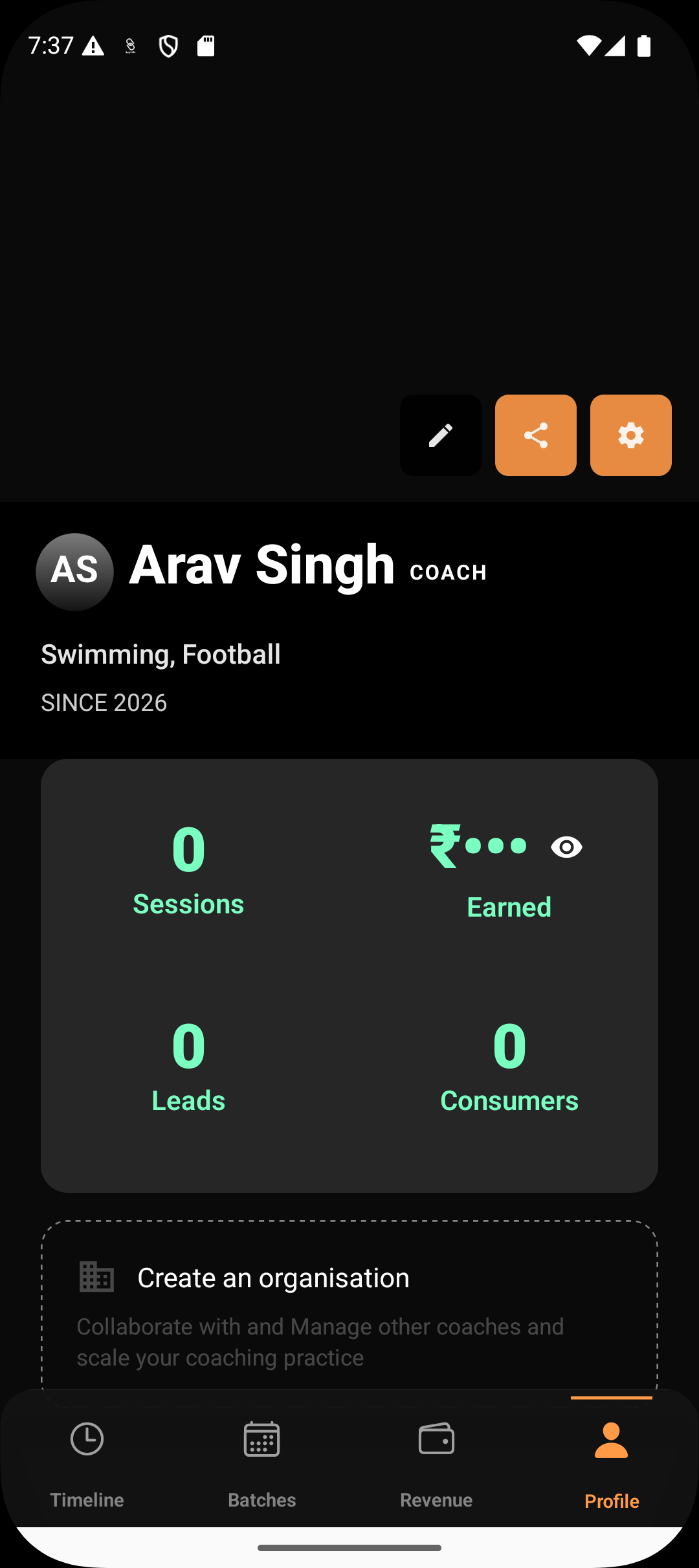
Step 1: Open your Profile page
Go to the Profile section from the bottom navigation.
Step 2: Tap on Share Profile
On the profile page, tap the Share option. This generates your public profile link.
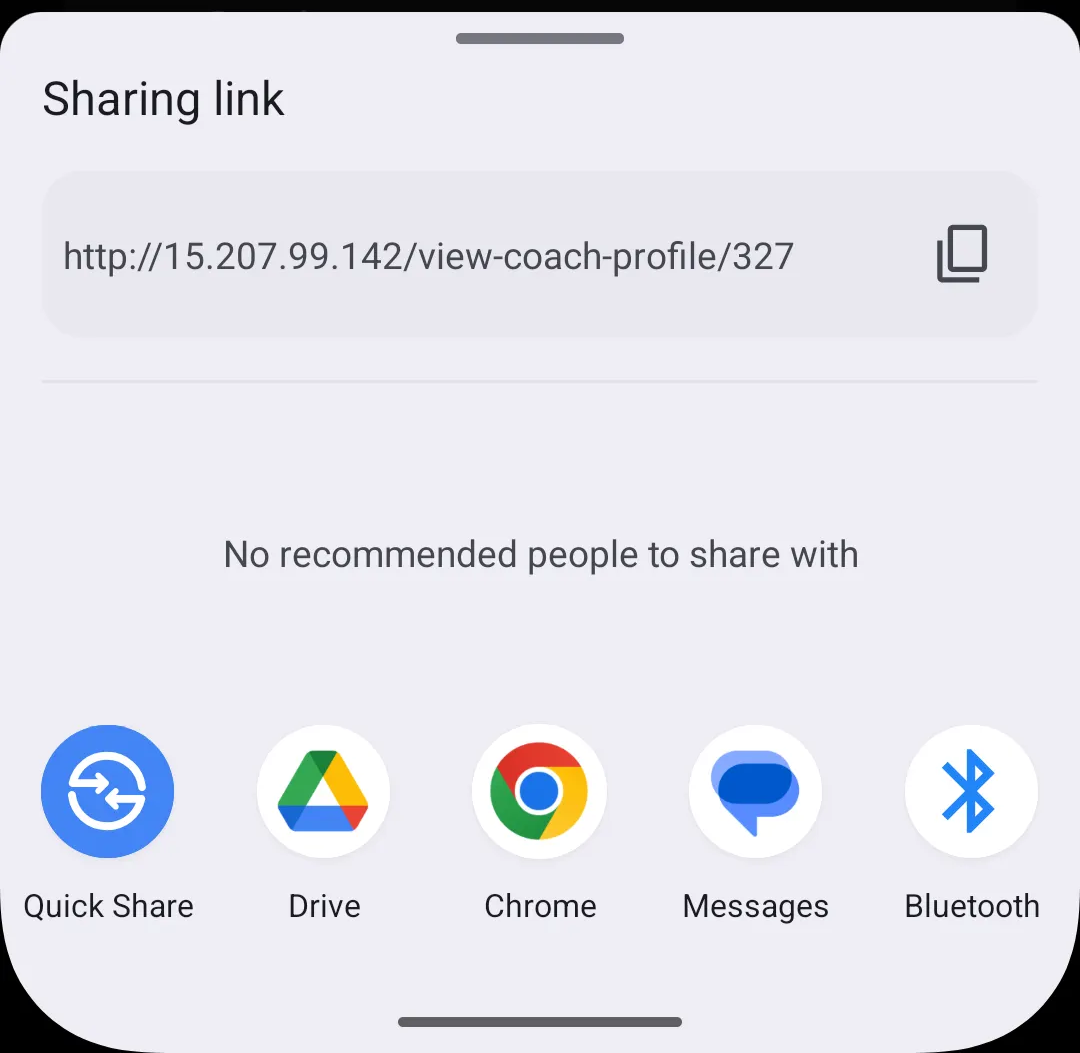
Step 3: Copy the profile link
Copy the generated link from the share options.
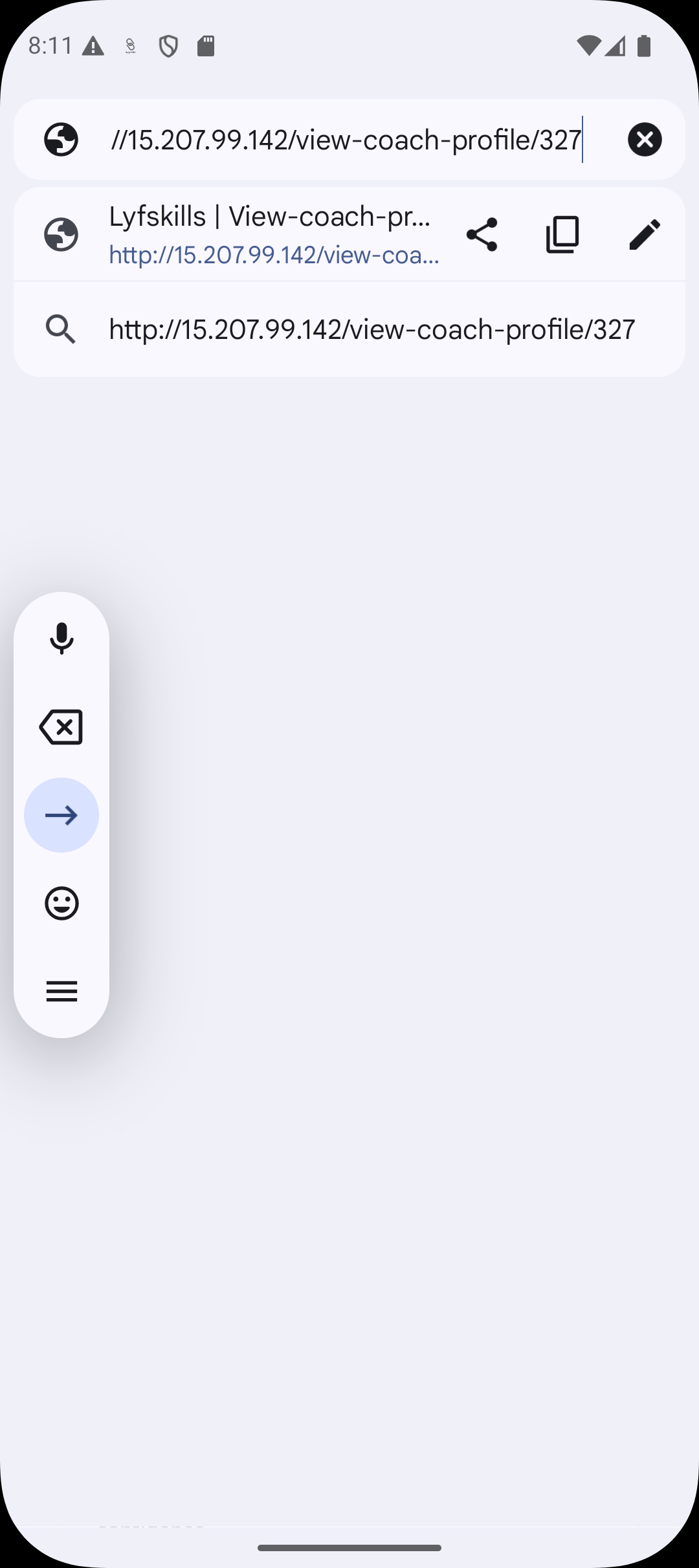
Step 4: Open the link in a browser
Paste the link into a browser such as Chrome.
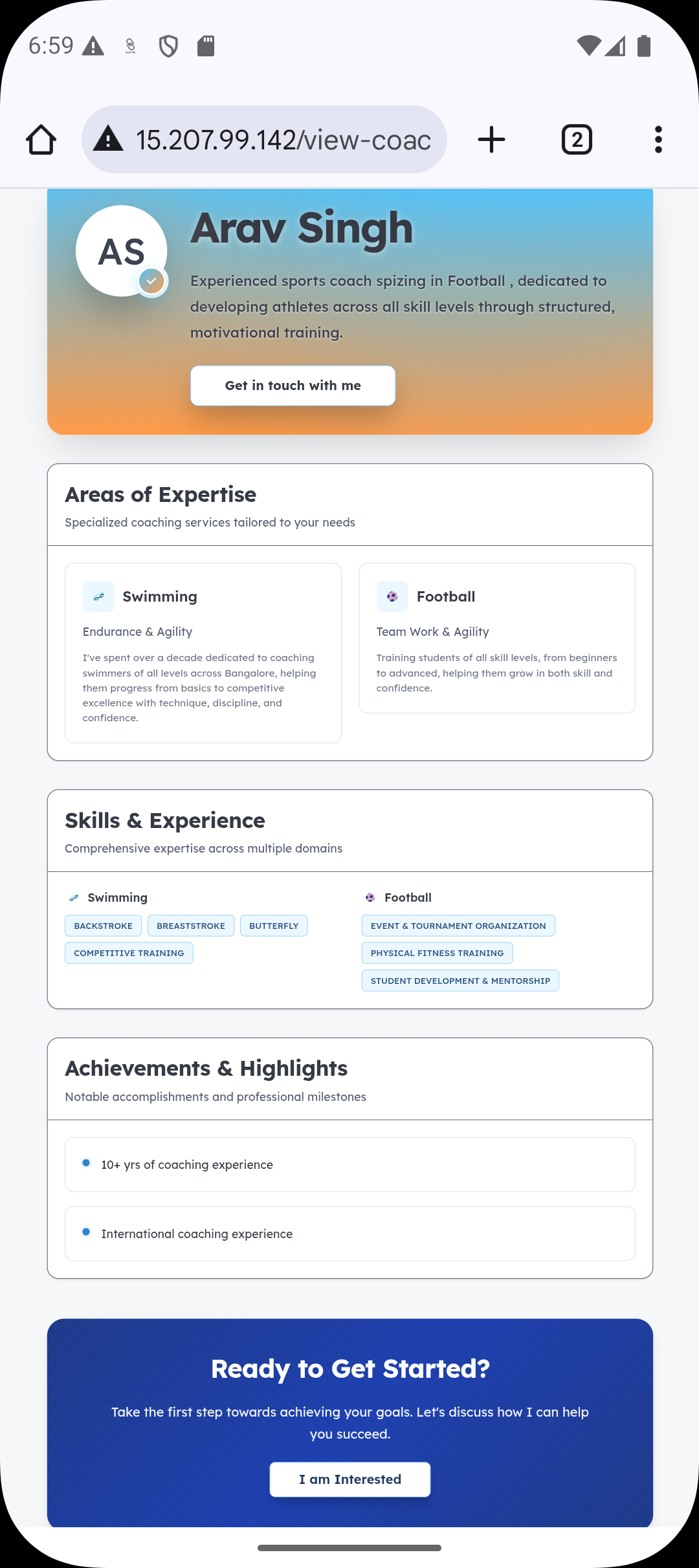
Step 5: Review the profile as a consumer
The page that opens is exactly what parents or students will see when they view your profile.
What to Check During Preview
While previewing, it’s recommended to review:
Your profile photo and name
Bio and coaching introduction
Subjects, focus areas, and skills
Professional highlights and experience
Overall clarity and presentation
This helps ensure your profile communicates the right message.
Making Changes After Preview
If something looks incorrect or outdated, return to the Profile section
Edit the relevant fields
Save your changes and refresh the preview link
You can repeat this process as many times as needed.
Summary
Previewing your profile in Lynk allows you to see your public page exactly as consumers will. By using the share link to open your profile in a browser, you can review, refine, and confidently share your profile knowing it accurately represents your coaching offering.