How to cancel a scheduled event
Safely cancel an event and move it to your past records without losing data.
Written by Swathi N
In Lynk Tower, you can cancel an event if it is no longer required or needs to be discontinued. Instead of deleting it, the system ensures that the event is properly recorded and moved for future reference.
When Should You Cancel an Event?
You may need to cancel an event if:
The session is no longer happening
There are scheduling conflicts
There are not enough registrations
Plans have changed or been postponed
Cancelling helps you manage your events cleanly without affecting past data.
How to Cancel an Event
To cancel a scheduled event:

Go to the Events tab
Open the event you want to cancel
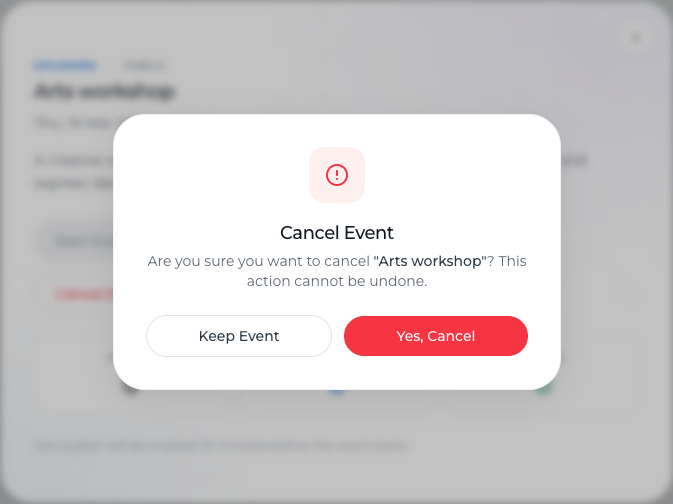
Click on the Cancel Event button
Confirm the cancellation when prompted
Once confirmed, the event will be cancelled immediately.
What Happens After Cancellation?
The event is no longer active
It is automatically moved to the Past tab
All event data is retained for records
This ensures you still have access to the event details if needed later.
Important Notes
Cancellation does not delete the event
You can still view it under the Past events section
It helps maintain a clear record of all scheduled activities
Conclusion
Cancelling an event in Lynk Tower is simple and structured. By using the Cancel Event option, you can stop an event while preserving its data and automatically organizing it under the Past tab for future reference.