Editing your Hero Banner and About Us sections
How to update the main banner and introduction sections of your storefront.
Written by Swathi N
In Lynk Tower, the Hero Banner and About Us sections are two of the most important parts of your storefront. The Hero Banner is the first section visitors see when they open your page, while the About Us section helps explain who you are and what your academy offers.
Using the Store Builder editor, you can easily update headings, images, colors, and text alignment for these sections.
Editing the Hero Banner
The Hero Banner is the top section of your storefront and is designed to capture attention with a large image and headline.
To edit the Hero Banner:
Go to Store Builder in Lynk Tower.
Click Open Editor for the storefront you want to update.
In the Sections panel on the left, select Header or the Hero Banner section.
The section settings will appear on the right panel.
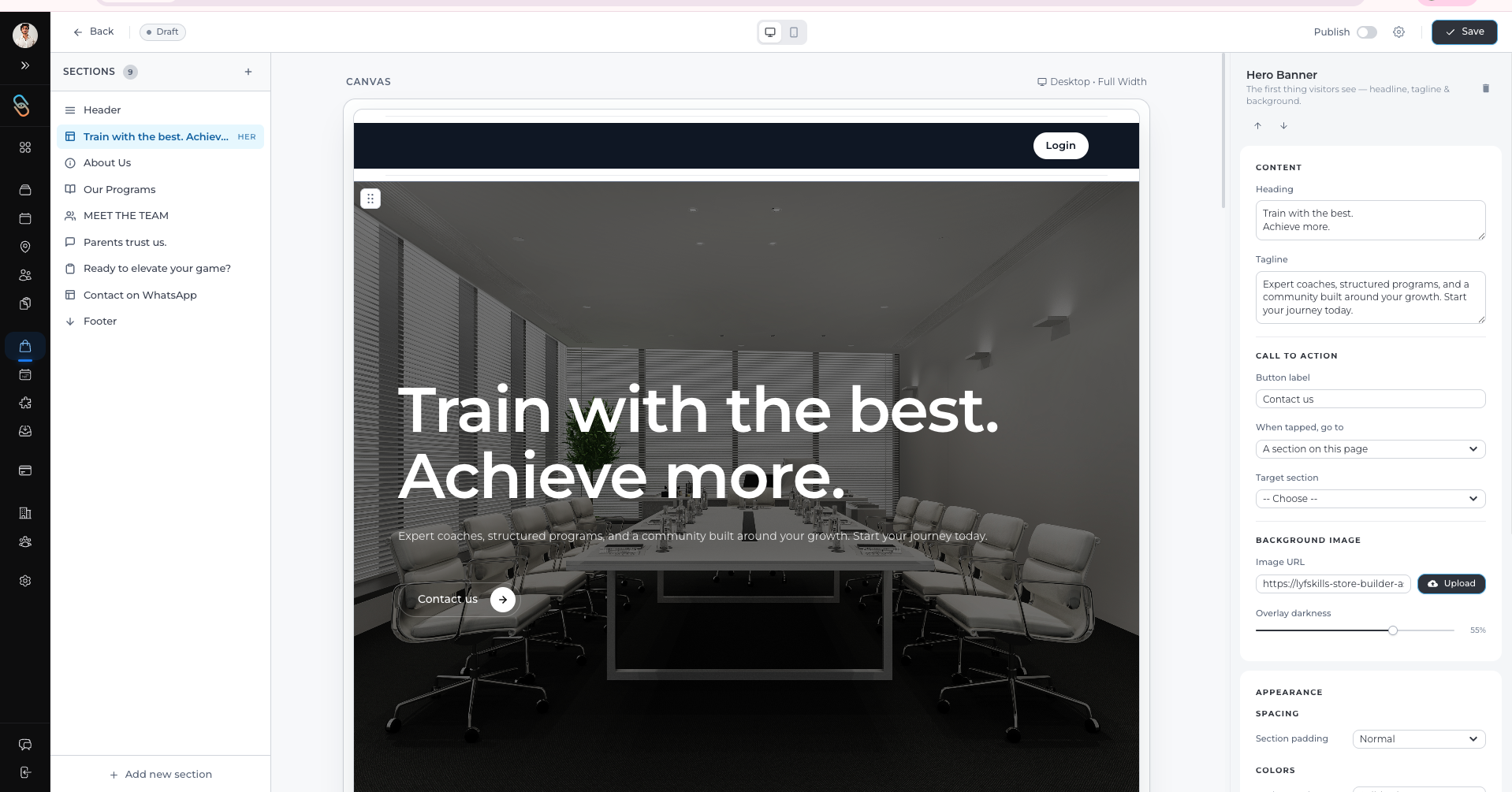
From here you can customize:
Heading text – Update the main title shown on the banner.
Subheading or description – Add a short message about your academy or programs.
Background image – Upload or change the banner image.
Color overlay – Adjust the overlay color to improve text visibility.
Text alignment – Choose whether the text appears left, center, or right.
After making changes, the live preview in the center will update automatically.
Editing the About Us Section
The About Us section allows you to introduce your academy and share important details with visitors.
To edit the About Us section:
Open the Store Builder Editor in Lynk Tower.
In the Sections panel, click About Us.
Use the settings panel on the right to update the content.
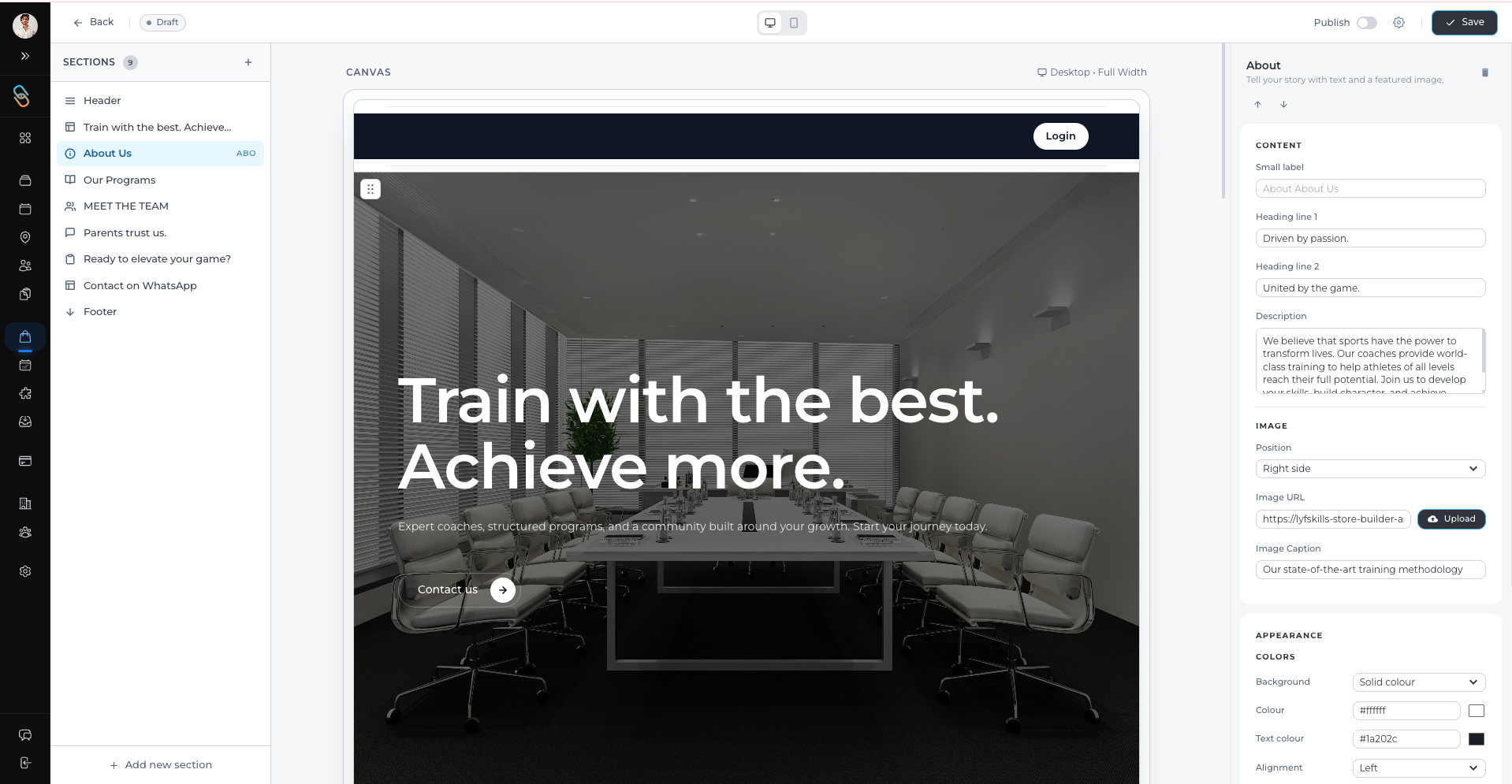
You can modify:
Section heading
Description text about your academy
Images related to your programs or facility
Text alignment and layout options
This section is useful for explaining your academy’s mission, experience, and coaching approach.
Tips for a Better Storefront
When editing the Hero Banner and About Us sections, keep these tips in mind:
Use a clear and engaging headline in the Hero Banner.
Choose high-quality images that represent your programs.
Keep the About Us description short and informative.
Ensure text is easy to read against the background image.
These small adjustments can make your storefront look more professional and welcoming.
Conclusion
The Hero Banner and About Us sections help create the first impression of your storefront in Lynk Tower. By updating headings, images, colors, and layout through the Store Builder editor, you can present your academy clearly and attract more students to your programs.