Managing your saved stores
How to manage, edit, preview, and publish your storefronts from the Store Builder dashboard.
Written by Swathi N
In Lynk Tower, the Store Builder dashboard allows you to manage all the storefronts you have created. From here, you can open the editor, preview your pages, publish updates, and manage both live and draft storefronts.
This helps you easily update your website without affecting the live version until you are ready.
Understanding the Store Builder Dashboard
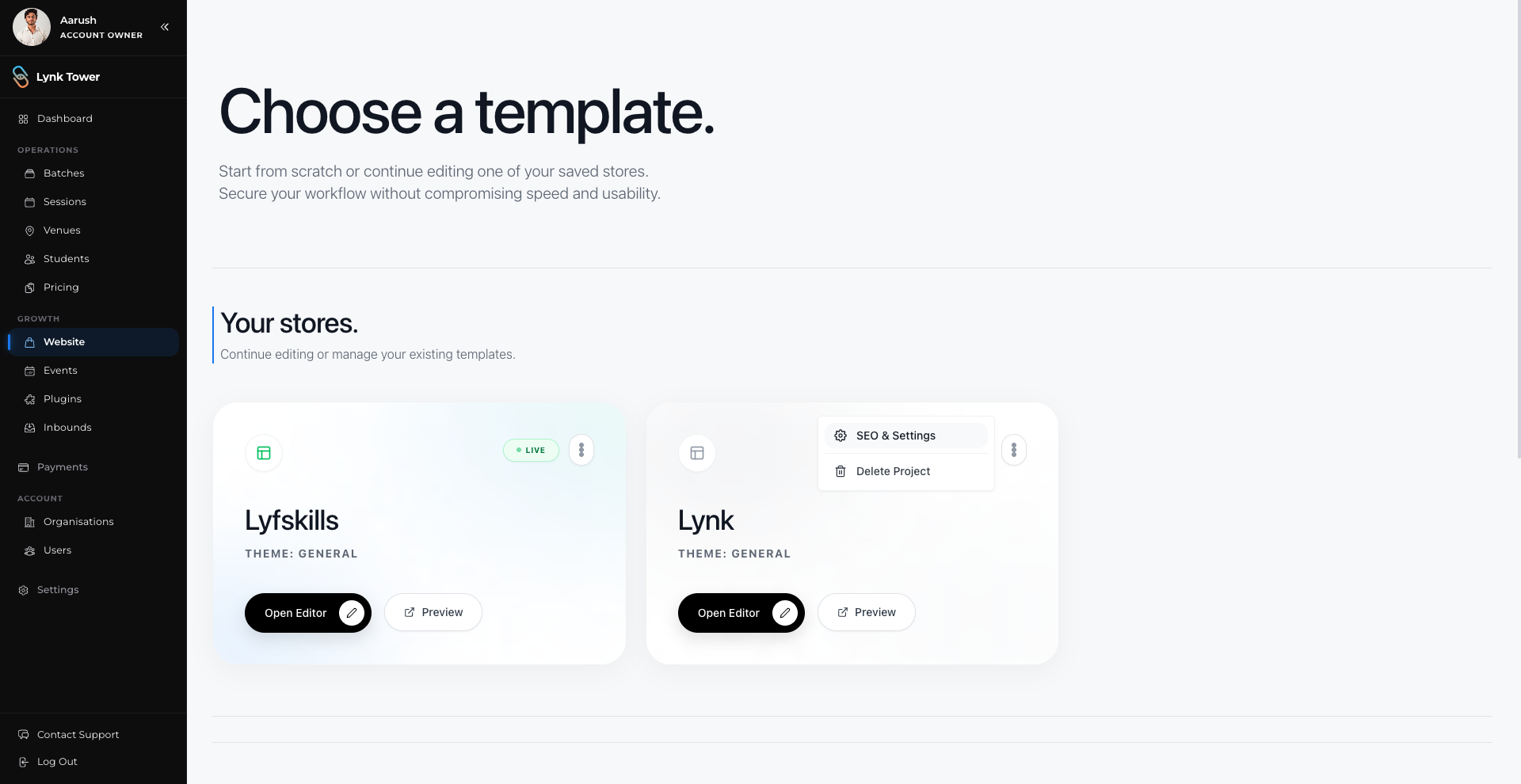
When you open Store Builder in Lynk Tower, you will see the Your Stores page. Each storefront appears as a card containing several options.
Each card typically includes:
Storefront name
Theme used for the site
Store status (Live or Draft)
Open Editor button
Preview option
More options menu (SEO & Setting and Delete Project)
Opening the Store Editor
To edit a storefront:
Go to Store Builder from the left sidebar.
Locate the storefront card you want to manage.
Click Open Editor.
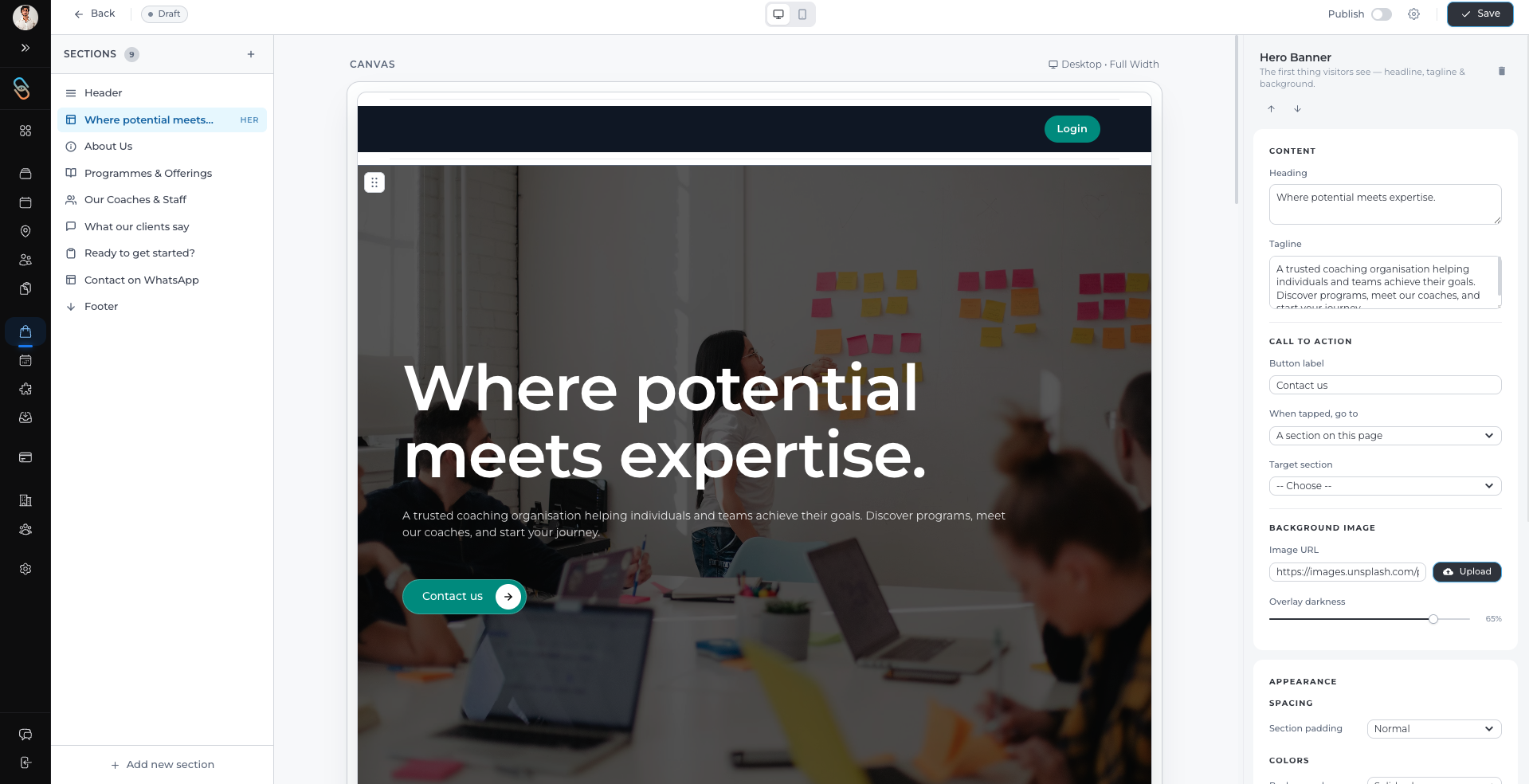
This will open the Store Builder editor, where you can modify sections, update content, and customize the design of your storefront.
Previewing Your Storefront
Before publishing changes, you can check how the page will appear to visitors.
To preview a storefront:
Click the Preview button on the storefront card.
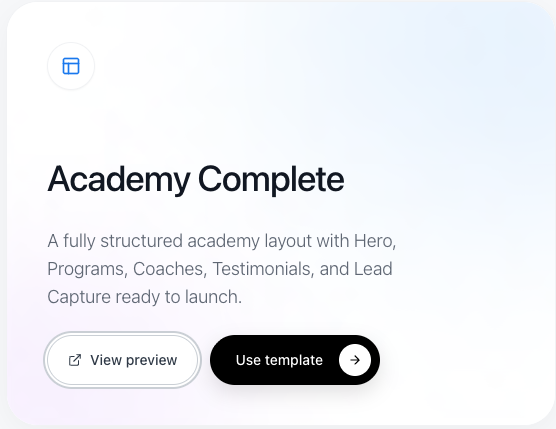
A preview page will open showing how your website will look publicly.
This allows you to review updates before making them live.
Understanding the “Live” Badge
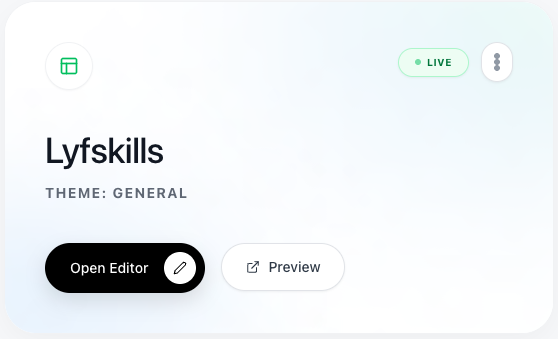
When a storefront has been published, it will display a green “Live” badge on the storefront card.
This means:
The storefront is currently visible to visitors.
Any changes you publish will update the live site.
Working with Draft Storefronts
You can also keep draft versions of storefronts.
Draft storefronts are useful when:
You are preparing future updates
You want to test changes before publishing
You are creating a new version of your site
You can edit these drafts anytime using Open Editor and publish them when they are ready.
Updating an Existing Live Store
If you want to update your current storefront:
Click Open Editor on the live store.
Make the required changes.
Save your updates.
Publish the changes to update the live site.
Conclusion
The Store Builder dashboard in Lynk Tower makes it easy to manage all your storefronts in one place. You can edit stores, preview updates, manage drafts, and publish changes whenever you’re ready, ensuring your academy’s website stays updated and professional.