How to generate a progress report
Reports can be generated from the Progress Report module in Lynk.
Written by Sumit Kapoor
Introduction
Progress reports help coaches communicate a student’s development clearly and consistently to parents or learners. In Lynk, progress reports are generated using coach-entered evaluations, supported by Lynk AI analysis of attendance records and session coach notes, ensuring that every report reflects real participation and observed growth—not generic feedback.
The draft report is generated with Lynk AI analysis, post which the coach can make edits before generating the final report. Post generation, the coach can preview the report and finally then trigger it to the student on their registered mobile number through whatsapp.
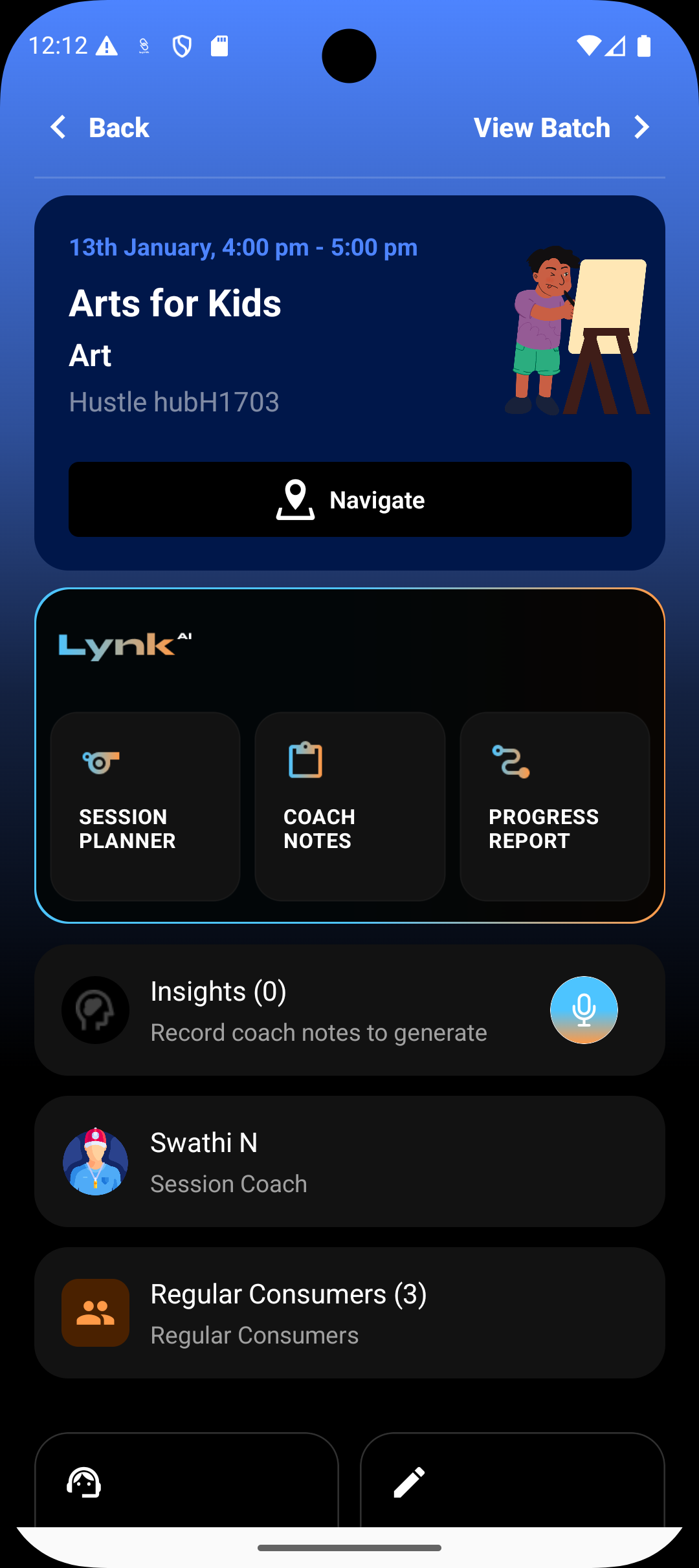
The Progress Report module is accessible directly from both the session card and the batch card, allowing coaches to generate reports at the right time with full context.
Where Progress Reports Live
Progress reports can be accessed and generated from:
The Batch Card, where reports can be created for any student enrolled in that batch
The Session Card, when reviewing or summarizing learning outcomes for recent sessions
This ensures reports stay tightly connected to actual sessions and batch activity.
How to Generate a Progress Report
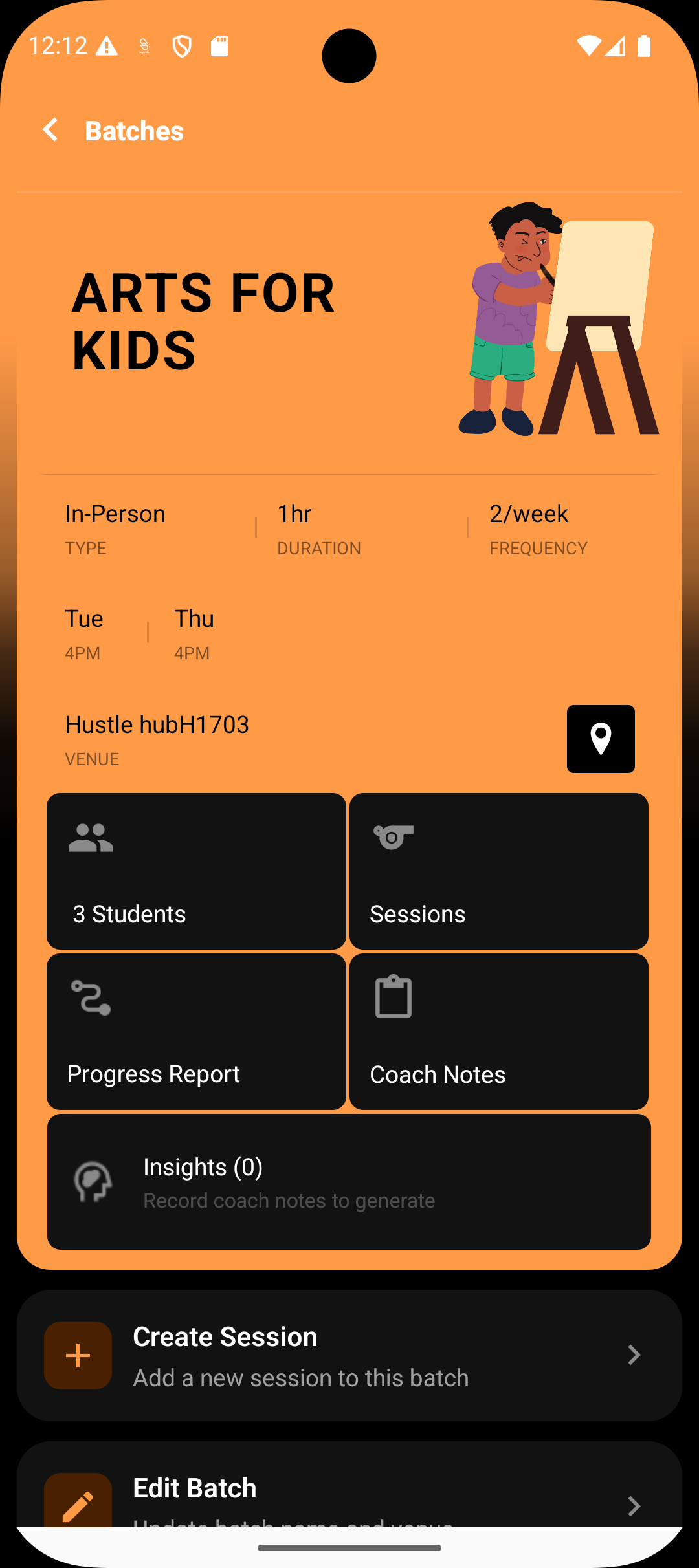
Step 1: Open the relevant batch or session
Navigate to the batch or session for which you want to generate a progress report.
Step 2: Open the Progress Reports module
Tap on Progress Report from the batch or session card.
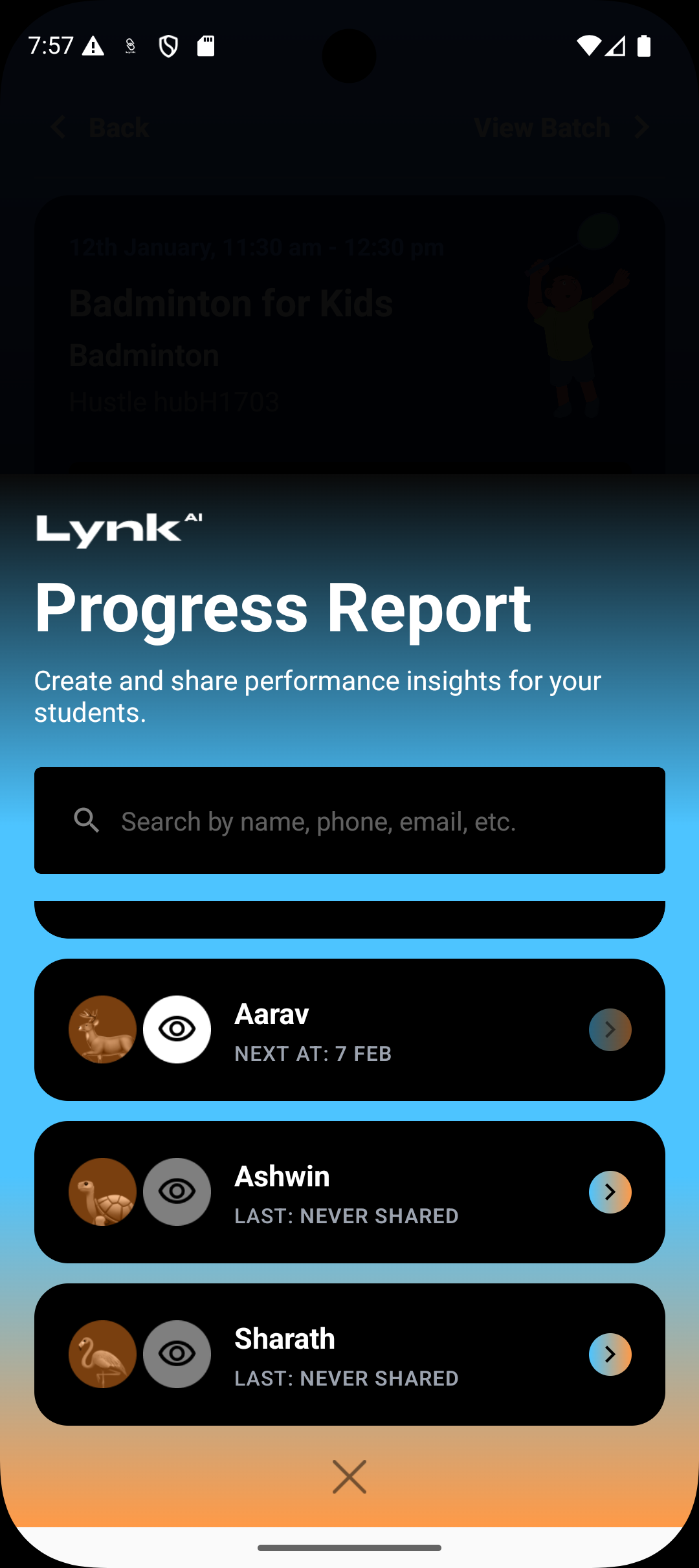
Step 3: Select the student
Choose the student for whom the report is being created. Each report is generated individually to ensure personalized feedback.
Filling Out the Report
Step 4: Evaluate Holistic Skills
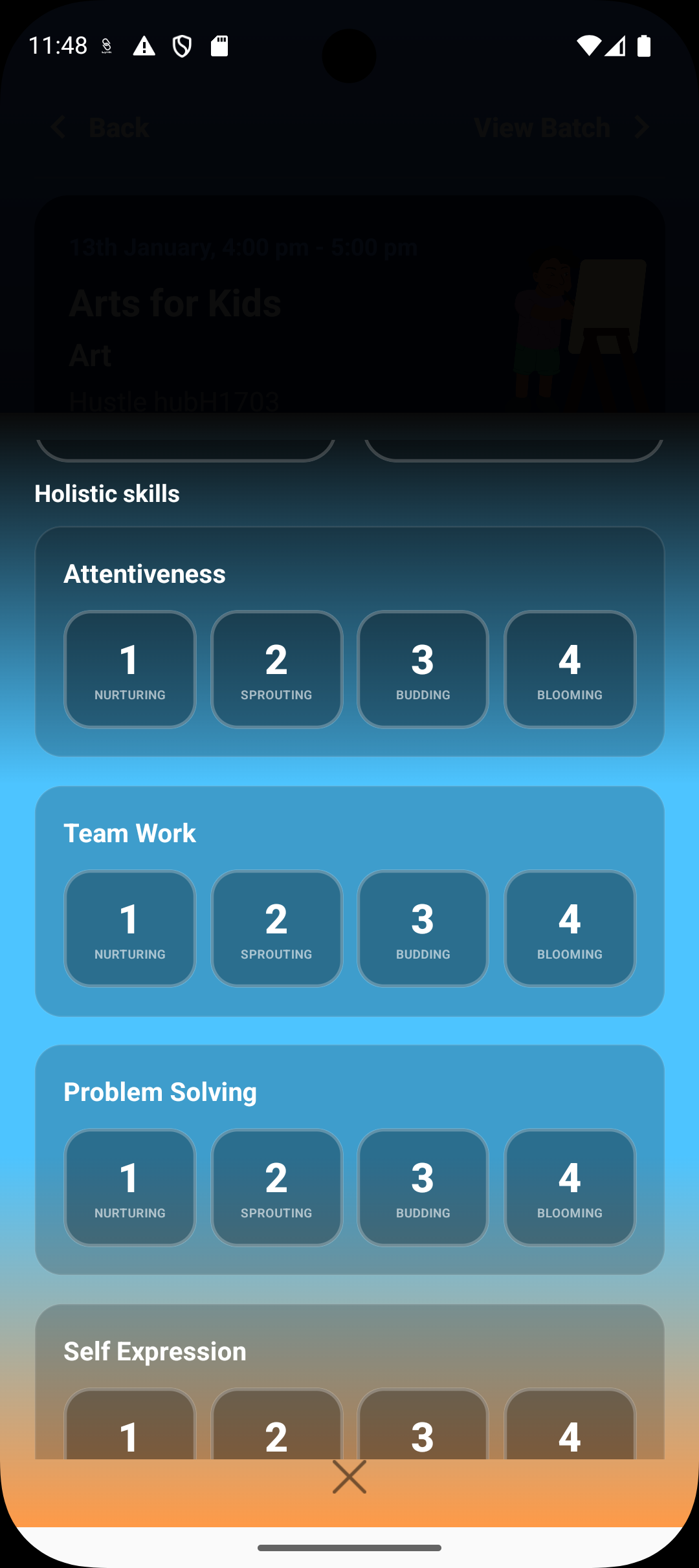
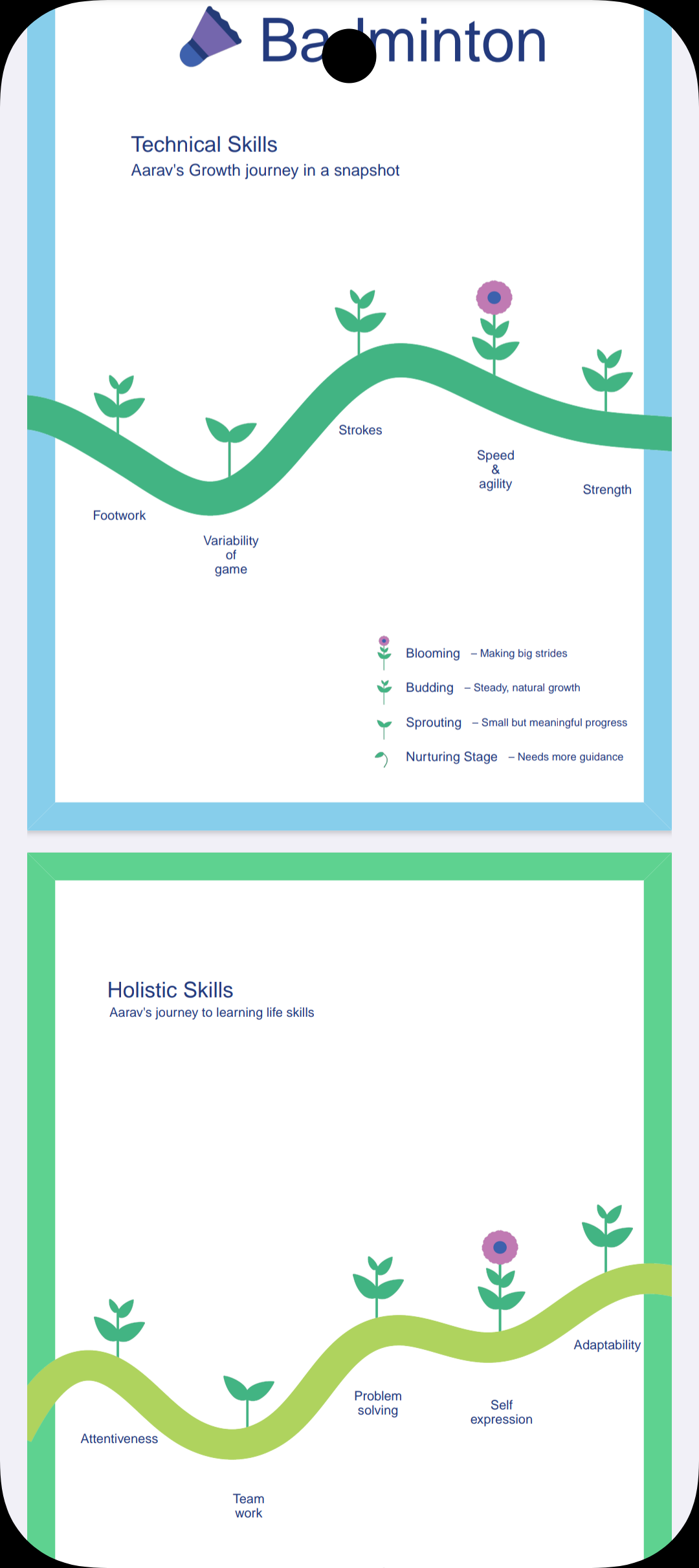
Rate the student across holistic skill areas, such as:
Attentiveness
Teamwork
Problem solving
Self expression
Adaptability
Each skill is assessed using structured growth stages, helping maintain consistency across reports.
Step 5: Evaluate Technical Skills
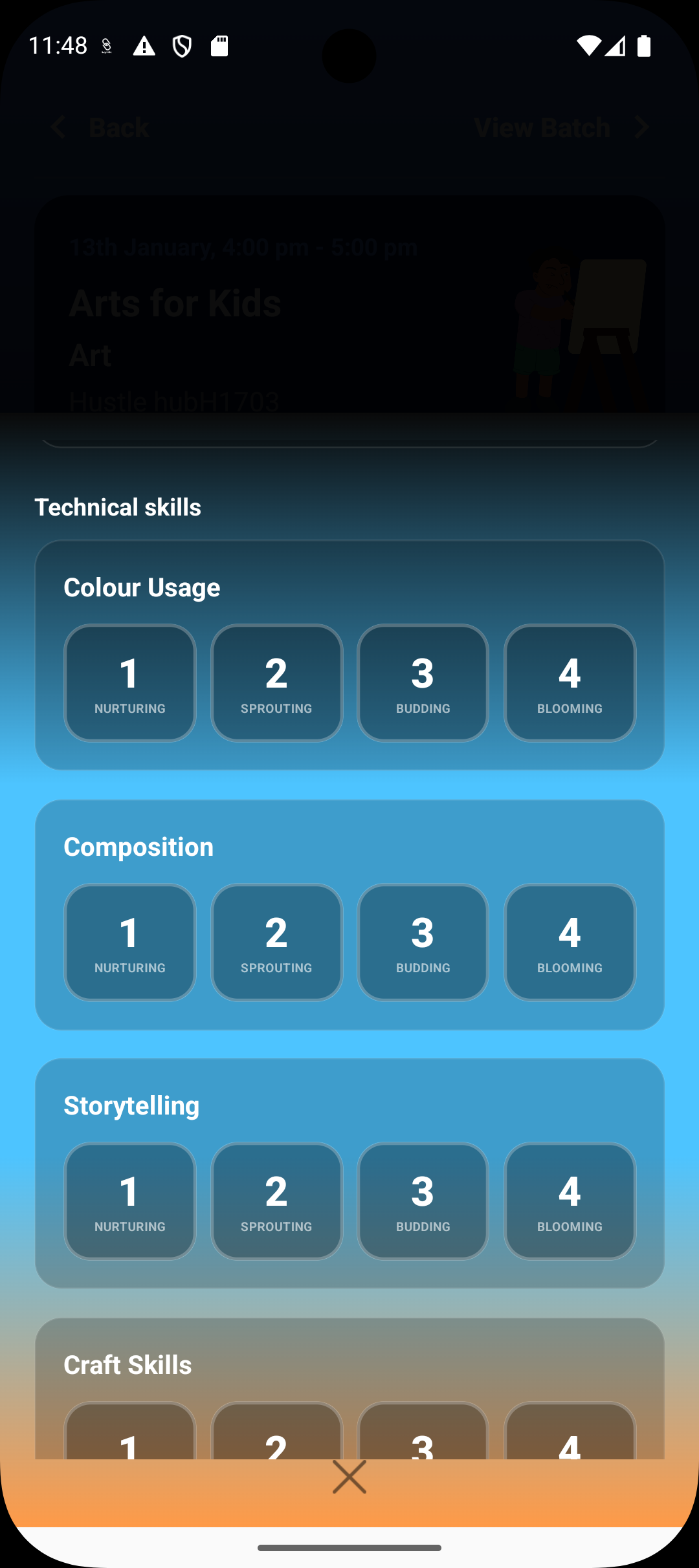
Technical skill sections are based on the activity or sport (e.g., badminton, swimming, yoga).
Select the appropriate level for each technical area relevant to the program.
Step 6: Context is automatically applied (no manual reference needed)
While generating the progress report, Lynk’s AI automatically considers:
Student attendance history
Coach notes recorded during previous sessions
Coaches do not need to manually review or reference this information. The system uses available data in the background to ensure the progress report accurately reflects the student’s engagement, consistency, and improvement over time.
Adding Coach Feedback
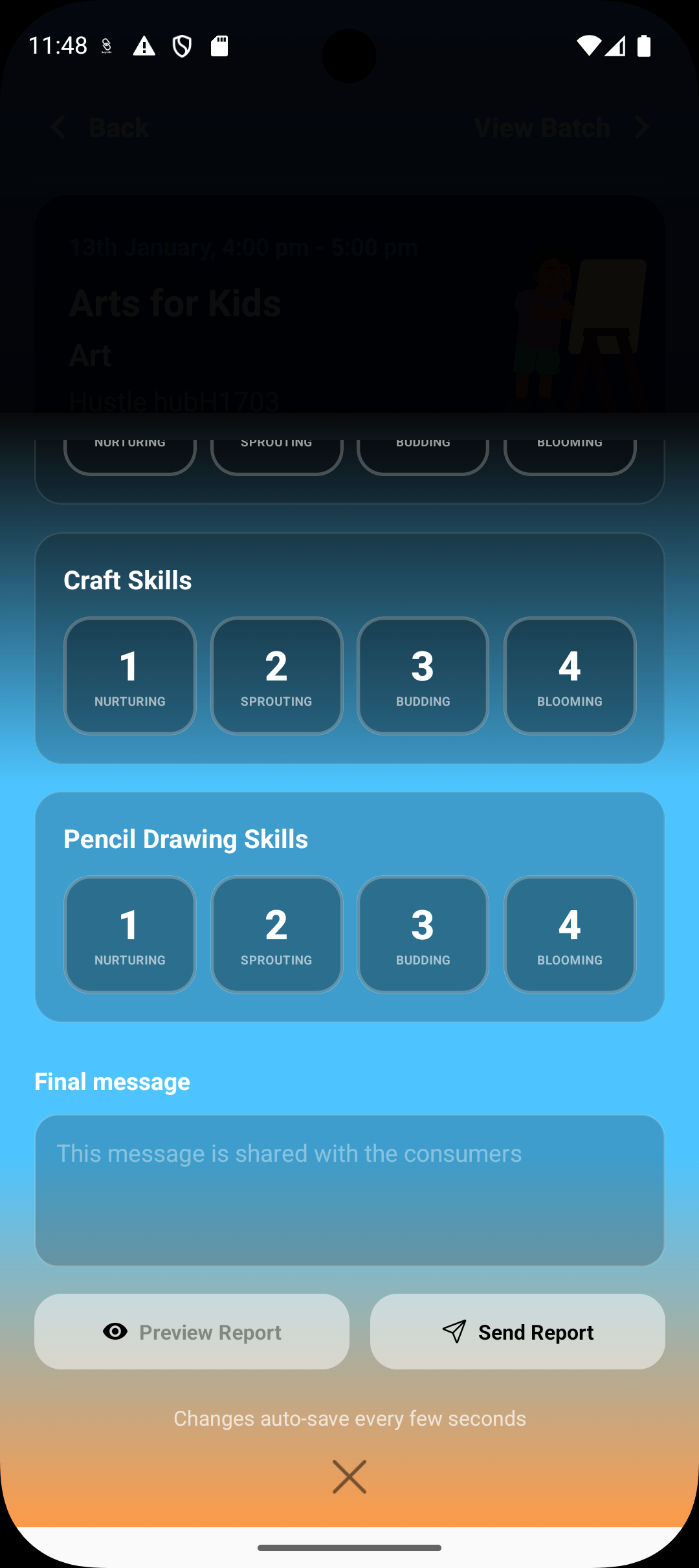
Step 7: Write the coach message
Add a personalized message summarizing the student’s progress, strengths, and areas to focus on next.
This message is shared directly with the student or parent.
Reviewing and Sending the Report
Step 8: Preview the report
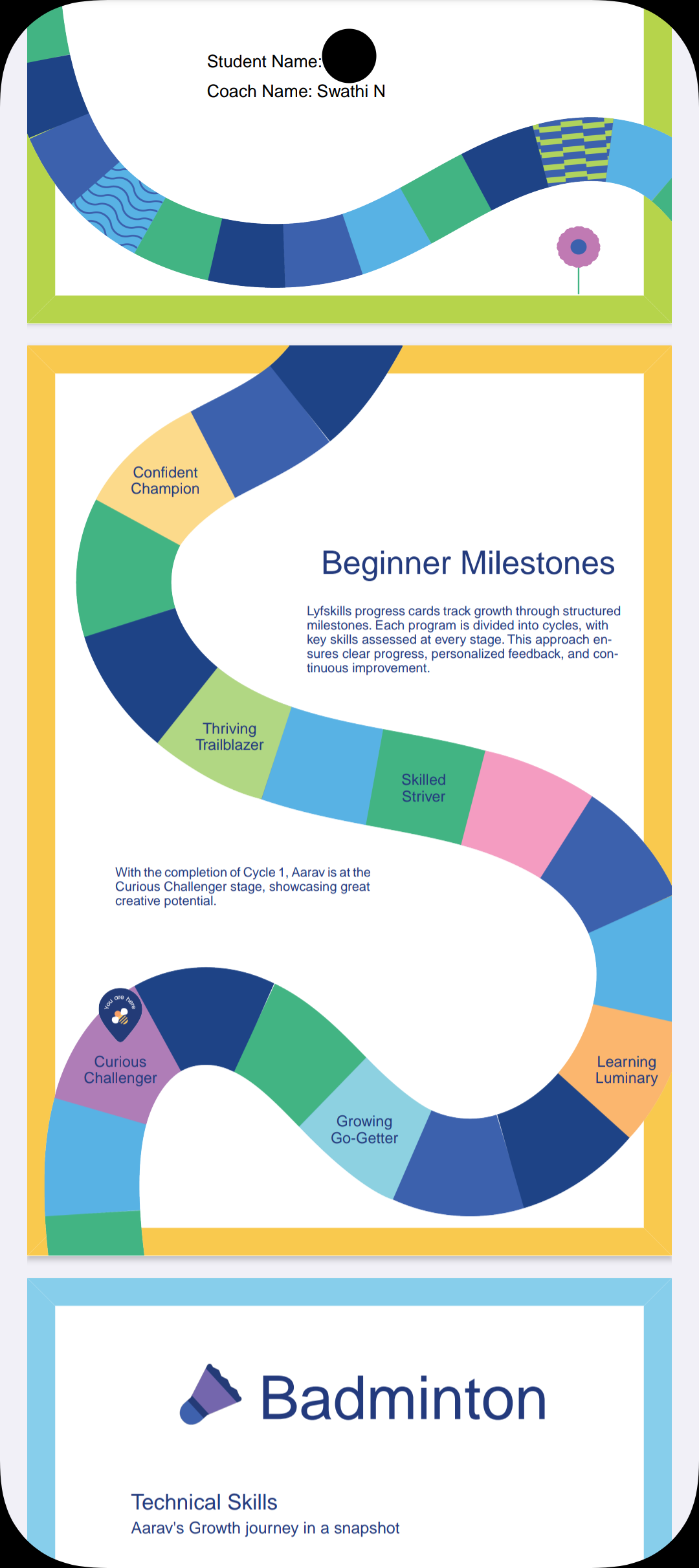
Use Preview Report to review the full layout, ratings, and coach message before sending.
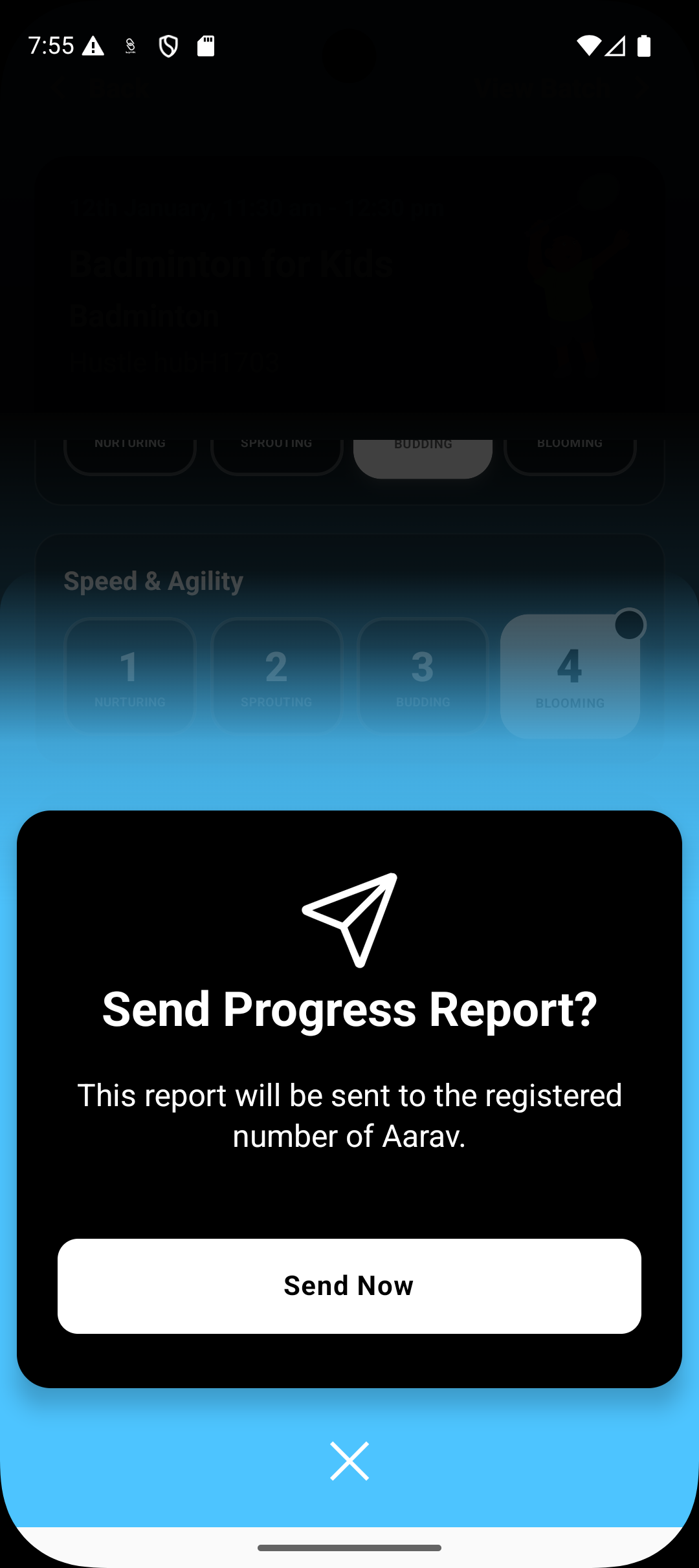
Step 9: Send the report
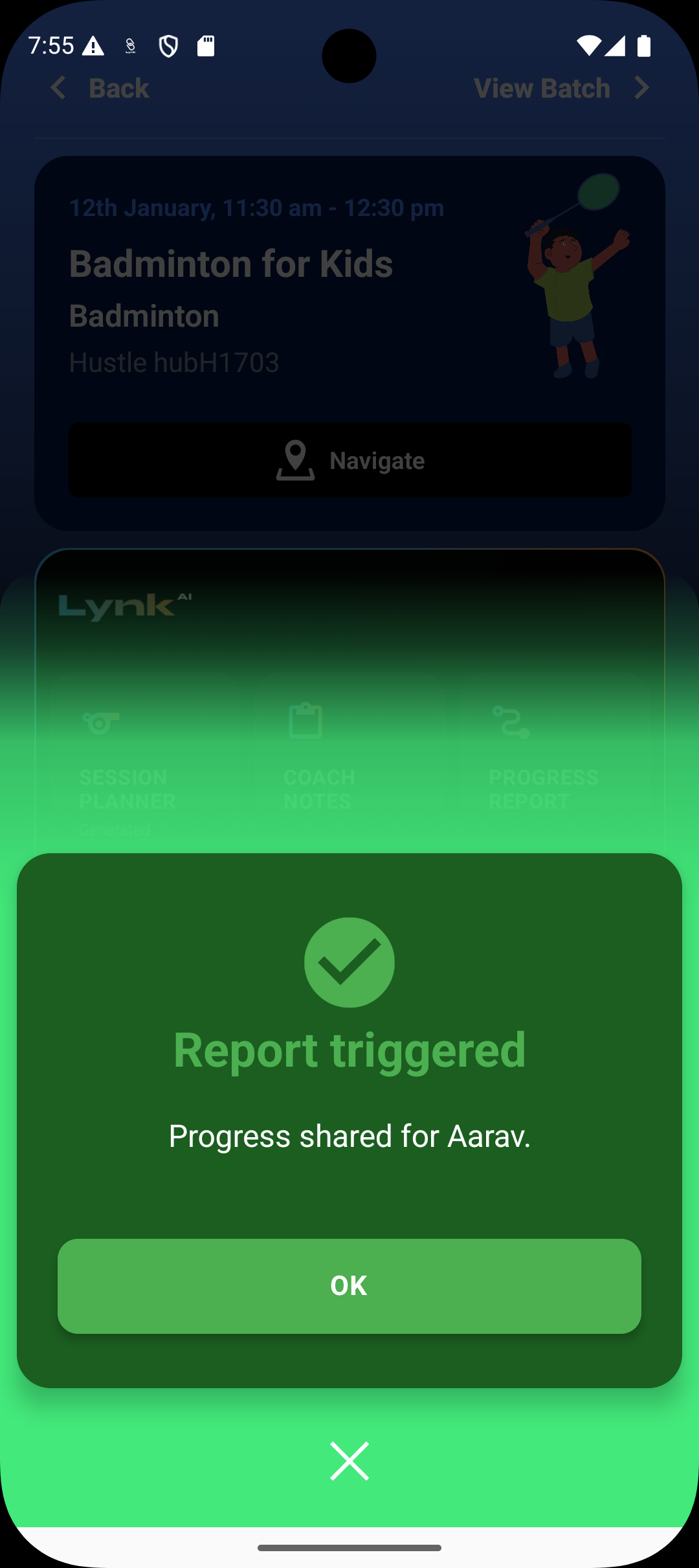
Tap Send Now to share the progress report.
The report is delivered to the registered phone number of the student or parent.
What Happens After Sending
The report is marked as shared in the Progress Report module
Coaches can view previously sent reports for reference
Reports remain tied to the batch and student history for future comparisons
Summary
Generating a progress report in Lynk is a guided, structured process that combines coach judgment with real session data. By selecting the student, evaluating holistic and technical skills, adding personalized feedback, and previewing before sending, coaches can create meaningful reports that accurately reflect growth.
Progress reports are designed to support transparency, trust, and continuous improvement—without adding administrative complexity to the coaching workflow.